
Thu Sep 18
What is a Routing App Coverage File?
The Routing App Coverage File is a GeoJSON file that tells Apple Maps where your transit or navigation app can provide directions. Learn the format, structure, real-world examples, and how to build one.

A routing app coverage file is a GeoJSON document that tells Apple Maps where your app can provide directions. When someone requests transit or cycling directions in Apple Maps, iOS checks the coverage files of every installed routing app. If your coverage area includes the requested route, your app appears as a routing option alongside Apple’s built-in navigation.
Without this file, your app never surfaces in Apple Maps - no matter how capable your routing engine.
Why Coverage Files Matter
Think of the coverage file as your app’s geographic claim. Apple Maps needs an answer to one question: “Can this app give directions from point A to point B?” Your GeoJSON file answers by defining polygon boundaries on a map.
Apple introduced this system in iOS 9. It applies to any app that provides:
- Public transit directions - bus, subway, train, ferry schedules
- Turn-by-turn driving navigation
- Cycling route planning
- Pedestrian walking directions
- Ride-hailing routing - showing routes for car services
If your app displays maps without routing - a map viewer, a location tracker, or a store locator - you do not need a coverage file.
For App Store Optimization (ASO), the routing integration is an overlooked discovery channel. Users who find your app through Apple Maps have immediate intent - they need directions right now. This makes it one of the highest-converting organic channels for navigation and transit apps, boosting your download velocity.
The GeoJSON Format
A routing app coverage file uses GeoJSON, an open standard (RFC 7946) for encoding geographic data as JSON. If you have worked with JSON before, GeoJSON will feel familiar.
Core Concepts
Every GeoJSON file builds on a few basic types:
Point - A single location:
{
  "type": "Point",
  "coordinates": [-122.4194, 37.7749]
}
Polygon - A closed shape defining an area (the building block of coverage files):
{
  "type": "Polygon",
  "coordinates": [[
    [-122.52, 37.70],
    [-122.52, 37.81],
    [-122.35, 37.81],
    [-122.35, 37.70],
    [-122.52, 37.70]
  ]]
}
Feature - A geometry with attached properties:
{
  "type": "Feature",
  "properties": {
    "name": "San Francisco",
    "modes": ["MKDirectionsModesTransit"]
  },
  "geometry": {
    "type": "Polygon",
    "coordinates": [[ ... ]]
  }
}
FeatureCollection - Multiple features grouped together (the standard structure for coverage files):
{
  "type": "FeatureCollection",
  "features": [ ... ]
}
The Coordinate Gotcha
GeoJSON uses longitude-latitude order, not latitude-longitude. This reverses what most people expect:
GeoJSON:    [longitude, latitude]  ->  [-122.4194, 37.7749]
Everyday:   [latitude, longitude]  ->  [37.7749, -122.4194]
This is the most common mistake in coverage files. If your polygons appear in the ocean or on the wrong continent, your coordinates are swapped.
All coordinates must use the WGS 84 coordinate reference system (EPSG:4326) - the same standard behind GPS.
Polygon Rules
Four rules govern how polygons work in GeoJSON:
- Rings must be closed - The first and last coordinate in every polygon ring must match
- Exterior rings should be counterclockwise - Per RFC 7946, though many parsers accept either winding order
- No self-intersections - Polygon edges must never cross
- Coordinate precision - Six decimal places gives ~11 cm accuracy, more than enough for coverage boundaries
Anatomy of a Coverage File
Below is a complete example for a transit app covering three US metro areas:
{
  "type": "FeatureCollection",
  "features": [
    {
      "type": "Feature",
      "properties": {
        "name": "San Francisco Bay Area",
        "modes": ["MKDirectionsModesTransit"],
        "description": "BART, Muni, Caltrain, and AC Transit"
      },
      "geometry": {
        "type": "Polygon",
        "coordinates": [[
          [-122.5200, 37.7050],
          [-122.5200, 37.8120],
          [-122.3570, 37.8120],
          [-122.3000, 37.8950],
          [-122.1500, 37.9050],
          [-122.0200, 37.8900],
          [-121.9000, 37.8000],
          [-121.8500, 37.6800],
          [-121.9500, 37.4300],
          [-122.0500, 37.3500],
          [-122.2500, 37.3500],
          [-122.4000, 37.5000],
          [-122.4800, 37.6300],
          [-122.5200, 37.7050]
        ]]
      }
    },
    {
      "type": "Feature",
      "properties": {
        "name": "New York City Metropolitan Area",
        "modes": ["MKDirectionsModesTransit"],
        "description": "NYC Subway, PATH, NJ Transit, LIRR, Metro-North"
      },
      "geometry": {
        "type": "Polygon",
        "coordinates": [[
          [-74.2700, 40.4900],
          [-74.2700, 40.6500],
          [-74.0500, 40.8800],
          [-73.7500, 40.9300],
          [-73.6500, 40.8000],
          [-73.7300, 40.6200],
          [-73.9800, 40.5100],
          [-74.2700, 40.4900]
        ]]
      }
    },
    {
      "type": "Feature",
      "properties": {
        "name": "Chicago Metropolitan Area",
        "modes": ["MKDirectionsModesTransit"],
        "description": "CTA and Metra rail"
      },
      "geometry": {
        "type": "Polygon",
        "coordinates": [[
          [-87.9400, 41.6400],
          [-87.9400, 42.0700],
          [-87.5200, 42.0700],
          [-87.5200, 41.6000],
          [-87.8000, 41.6000],
          [-87.9400, 41.6400]
        ]]
      }
    }
  ]
}
You can download this sample file as a starting point for your own app.
Breaking Down the Structure
Here is what each part does:
| Part | Purpose |
|---|---|
type: "FeatureCollection" | Top-level container holding all coverage regions |
features: [...] | Array of individual coverage regions |
properties.name | Human-readable label for the region (helpful for your team, not used by Apple) |
properties.modes | Which routing modes your app supports in this region |
geometry.type | Shape type - Polygon for a single area, MultiPolygon for disconnected zones |
geometry.coordinates | Array of coordinate rings defining the boundary |
Supported Routing Modes
The modes property tells Apple Maps what kind of directions your app provides per region:
| Mode Identifier | Use Case | Example Apps |
|---|---|---|
MKDirectionsModesTransit | Bus, subway, train, ferry | Citymapper, Transit, Moovit |
MKDirectionsModesAutomobile | Driving navigation | Waze, Google Maps |
MKDirectionsModesWalk | Walking directions | Google Maps, AllTrails |
MKDirectionsModeBicycle | Cycling routes | Komoot, Strava |
MKDirectionsModesRideShare | Ride-hailing | Uber, Lyft |
You can assign different modes to different regions. Your app might offer transit routing in 5 cities but cycling routing nationwide.
Real-World Examples
Example 1: Single-City Transit App
A transit app serving only Dublin, Ireland:
{
  "type": "FeatureCollection",
  "features": [
    {
      "type": "Feature",
      "properties": {
        "name": "Dublin Metro Area",
        "modes": ["MKDirectionsModesTransit"]
      },
      "geometry": {
        "type": "Polygon",
        "coordinates": [[
          [-6.4500, 53.2200],
          [-6.4500, 53.4500],
          [-6.0500, 53.4500],
          [-6.0500, 53.2200],
          [-6.4500, 53.2200]
        ]]
      }
    }
  ]
}
This is a simple bounding rectangle. It works, but it captures areas outside Dublin - including parts of the Irish Sea. A more precise polygon would trace the actual city and suburban boundary.
Example 2: Multi-Mode Navigation App
An app providing driving directions nationally but transit only in select cities:
{
  "type": "FeatureCollection",
  "features": [
    {
      "type": "Feature",
      "properties": {
        "name": "United Kingdom - Driving",
        "modes": ["MKDirectionsModesAutomobile"]
      },
      "geometry": {
        "type": "Polygon",
        "coordinates": [[
          [-8.65, 49.86],
          [-8.65, 60.86],
          [1.77, 60.86],
          [1.77, 49.86],
          [-8.65, 49.86]
        ]]
      }
    },
    {
      "type": "Feature",
      "properties": {
        "name": "London - Transit",
        "modes": ["MKDirectionsModesTransit"]
      },
      "geometry": {
        "type": "Polygon",
        "coordinates": [[
          [-0.5100, 51.2850],
          [-0.5100, 51.6920],
          [0.3340, 51.6920],
          [0.3340, 51.2850],
          [-0.5100, 51.2850]
        ]]
      }
    },
    {
      "type": "Feature",
      "properties": {
        "name": "Manchester - Transit",
        "modes": ["MKDirectionsModesTransit"]
      },
      "geometry": {
        "type": "Polygon",
        "coordinates": [[
          [-2.4200, 53.3700],
          [-2.4200, 53.5900],
          [-2.0800, 53.5900],
          [-2.0800, 53.3700],
          [-2.4200, 53.3700]
        ]]
      }
    }
  ]
}
Notice how driving coverage spans the entire UK as one large polygon. Transit coverage is limited to cities where the app has schedule data.
Example 3: Cycling App with Detailed Boundaries
A cycling app mapping trails and bike lanes in Portland, using a polygon that traces the metro boundary:
{
  "type": "FeatureCollection",
  "features": [
    {
      "type": "Feature",
      "properties": {
        "name": "Portland Metro Cycling Network",
        "modes": ["MKDirectionsModeBicycle"]
      },
      "geometry": {
        "type": "Polygon",
        "coordinates": [[
          [-122.8400, 45.4300],
          [-122.8400, 45.5000],
          [-122.8200, 45.5500],
          [-122.7700, 45.5900],
          [-122.7000, 45.6100],
          [-122.6200, 45.6200],
          [-122.5500, 45.6000],
          [-122.5000, 45.5700],
          [-122.4700, 45.5300],
          [-122.4600, 45.4800],
          [-122.4700, 45.4300],
          [-122.5200, 45.3900],
          [-122.5900, 45.3700],
          [-122.6700, 45.3700],
          [-122.7500, 45.3900],
          [-122.8100, 45.4100],
          [-122.8400, 45.4300]
        ]]
      }
    }
  ]
}
This polygon follows the metro boundary instead of using a rectangle. It avoids claiming coverage over the mountainous terrain west of the city where no bike infrastructure exists.
How Apple Maps Uses Your Coverage File
Understanding this flow helps you design better boundaries:
- A user opens Apple Maps and requests directions (e.g., “Transit from Union Square to SFO”)
- Apple Maps identifies the geographic area of the route
- It checks the coverage files of all installed routing apps on the device
- Apps whose polygons contain both the start and end points appear as routing options
- The user taps your app
- Apple Maps sends an
MKDirectionsRequestwith the source, destination, transport mode, and time preferences - Your app opens and displays the route
Your coverage file gates step 3. If your polygons exclude the user’s route endpoints, your app stays invisible.
Coverage Area Sizing Strategy
Start slightly larger than your actual service area. If your transit data covers routes within San Francisco city limits, extend your polygon 5-10 km past the boundary. This catches suburban users who need to reach a stop just inside the city.
But never overclaim. If a user picks your app and you cannot provide directions, the experience collapses. They must return to Maps and choose another option. This triggers negative app reviews and erodes your conversion rate.
Building Your Coverage File
From GTFS Data
If your transit app uses GTFS (General Transit Feed Specification) data, you can generate a coverage polygon from stop locations:
import json
from shapely.geometry import MultiPoint, mapping

# Extract all stop coordinates from your GTFS stops.txt
stops = []
with open("stops.txt") as f:
    for line in f:
        parts = line.strip().split(",")
        lon, lat = float(parts[4]), float(parts[3])
        stops.append((lon, lat))

# Create a convex hull with a small buffer (approx 1km)
coverage = MultiPoint(stops).convex_hull.buffer(0.01)

# Build the GeoJSON
geojson = {
    "type": "FeatureCollection",
    "features": [{
        "type": "Feature",
        "properties": {
            "name": "Transit Coverage",
            "modes": ["MKDirectionsModesTransit"]
        },
        "geometry": mapping(coverage)
    }]
}

with open("coverage.geojson", "w") as f:
    json.dump(geojson, f, indent=2)
From Administrative Boundaries
Use open data sources to get precise city or region outlines:
- OpenStreetMap - Extract boundaries via the Overpass API or pre-built extracts
- Natural Earth - Country and state-level shapes
- Government open data portals - City limits and transit authority service zones
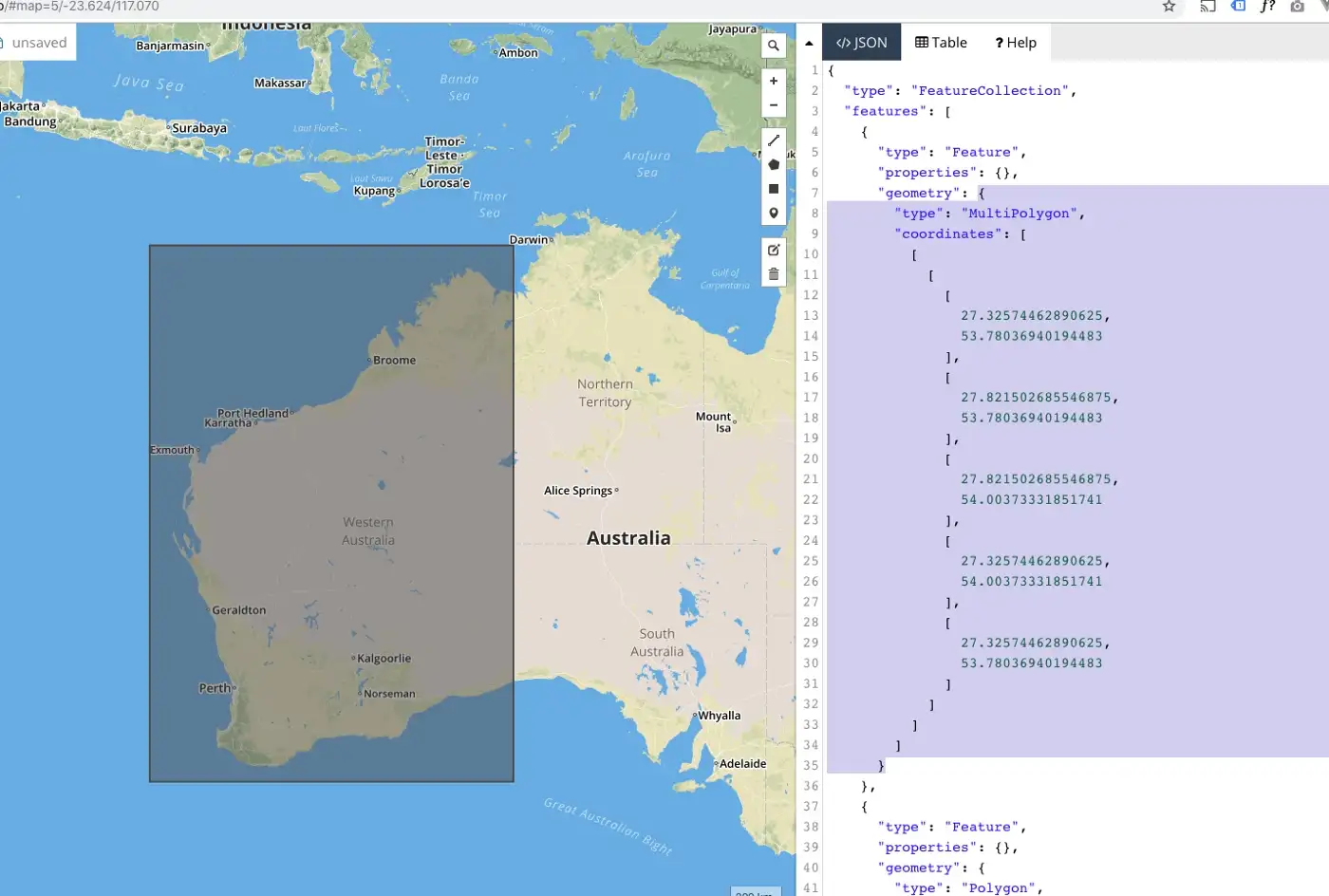
- geojson.io - Draw custom boundaries on an interactive map
Simplifying Complex Boundaries
Administrative boundaries often contain thousands of coordinate points. For a coverage file you need far less detail. Use tools like mapshaper.org to reduce vertices while preserving the general shape. Aim for files under 5 MB. Apple accepts up to 20 MB, but smaller files process faster.
Validating Your File
Before uploading to App Store Connect, validate thoroughly.
Structural Checks
Run your file through a GeoJSON linter:
- geojsonlint.com - Validates structure and geometry rules
- geojson.io - Validates and visualizes simultaneously
- GDAL/ogrinfo - Command-line validation:
ogrinfo -al coverage.geojson
Common Mistakes
| Problem | Symptom | Fix |
|---|---|---|
| Swapped coordinates | Polygons appear in the wrong location | Switch to [longitude, latitude] order |
| Unclosed ring | Validation error | Copy first coordinate to end of ring |
| Self-intersecting polygon | Validation error | Simplify the polygon at crossing points |
| File too large | Slow processing or upload failure | Reduce decimal places to 6 and simplify boundaries |
| Wrong routing mode | App shows for incorrect direction type | Check modes array matches your Info.plist |
Visual Verification
Always render your file on a map before submitting. Open geojson.io, paste your GeoJSON content, and confirm:
- Polygons cover the correct geographic regions
- No gaps exist between adjacent areas
- Boundaries stay out of areas you cannot serve
- The shapes look reasonable when zoomed out
Submitting to the App Store
Xcode Configuration
Before uploading, your Xcode project needs the right capabilities:
- Add the Maps capability to your app target
- Check the routing modes your app supports (Transit, Automobile, Pedestrian, Cycling)
- Configure your Info.plist with matching
MKDirectionsApplicationSupportedModes
<key>MKDirectionsApplicationSupportedModes</key>
<array>
    <string>MKDirectionsModesTransit</string>
</array>
Upload in App Store Connect
- Go to your app in App Store Connect
- Navigate to App Information
- Find the Routing App Coverage File section
- Upload your
.geojsonfile - Submit alongside your app binary for review
The coverage file ties to your app globally, not to a specific version. You can update it independently, though changes still require Apple’s review.
Common Rejection Reasons
- Coverage mismatch - You claim an area but your app cannot provide directions there
- Wrong routing modes - Info.plist declares transit but your app only handles driving
- Malformed GeoJSON - Structural errors that slipped past validation
- Overclaiming - Global coverage when the app only works in specific cities
Keeping Your Coverage Current
Transit networks shift constantly. Bus routes appear, train lines extend, and service areas expand. Update your file when:
- Your transit data adds routes beyond the current polygon
- You discontinue service in a region
- You expand to new cities
- Transit authority service zones change
Set a quarterly review to compare your boundaries against actual routing data. A stale file leads to missed users (boundaries too small) or frustrated users (boundaries too large).
ASO Impact
Your Apple Maps routing integration affects your app’s discoverability:
- High-intent discovery - Users who find your app through Maps need directions now, making this one of the highest-converting organic channels
- Engagement signals - Routing sessions count as active usage, strengthening your engagement metrics
- Retention boost - Daily commuters who rely on your app for routing show far higher retention rates than users from other channels
- Keyword relevance - Active routing usage reinforces your app’s relevance for transit and navigation keywords in App Store search
Use ASODOG to track how coverage expansion correlates with shifts in your category rankings and download trends.
Download the Sample File
We prepared a sample coverage file spanning three US metro areas (San Francisco Bay Area, New York City, and Chicago) with transit routing modes.
Download sample-routing-coverage.geojson
Use it as a template. Replace the coordinates and properties with your own service areas.
For a step-by-step implementation guide covering Xcode setup, Swift code for handling routing requests, and testing strategies, see our guide: How to Create a Routing App Coverage File.